Your Wallet is where every SquareBond QR code you own lives — and where you change what each one points to.
Think of it as the back of your business card binder. You printed the fronts once; the Wallet is where you decide, at any time, what's written on the back.
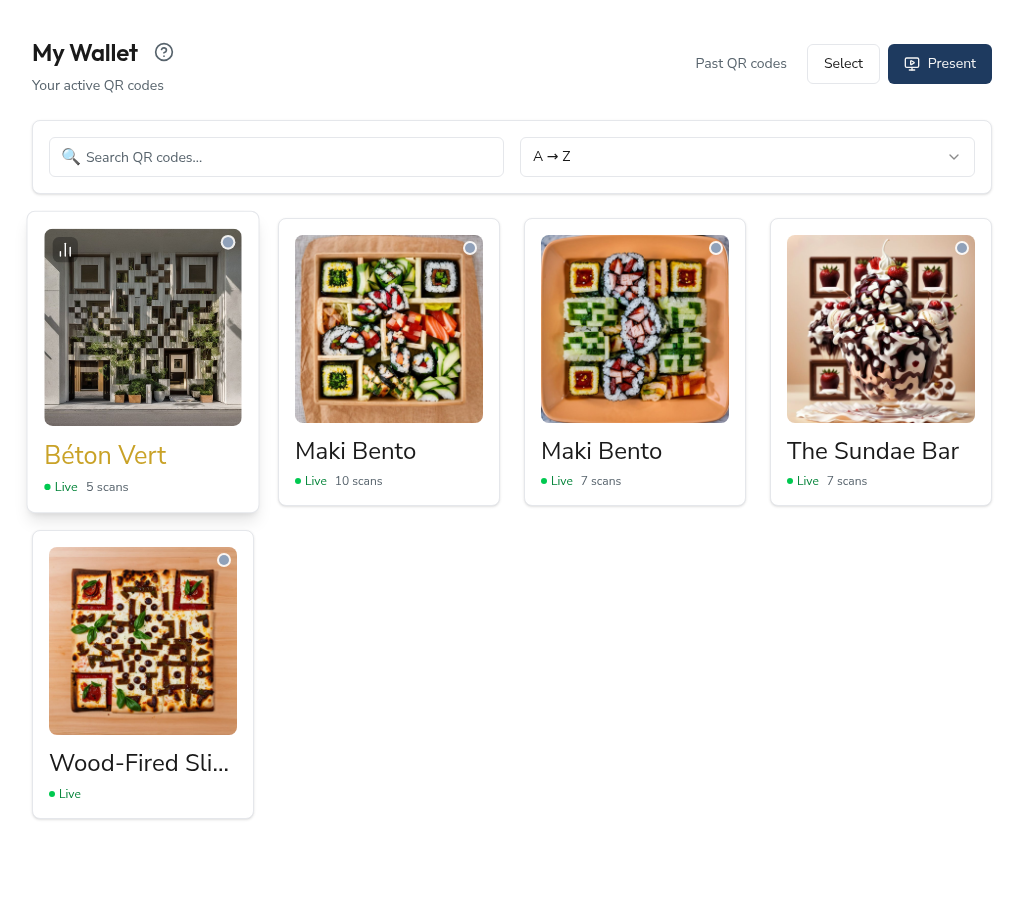
What's in the Wallet
Every code you've activated — whether from a trial or a paid plan — appears as a card in a grid. Each card shows the design, the code's name, and a preview of where it currently points.
Under the name sits a short line like sq.sb/n8Yr3. That is the code's own short link — the same string that resolves when someone scans the printed code. It is unique to that code, so even two codes on the same artwork are tellable apart at a glance. You can also give a code your own name; see Naming your codes below.
Above the grid, a search bar and a sort toggle:
- Search matches the code's name or its short code. Accents don't matter — typing
cotefinds Côte d'Azur. - Sort offers A → Z, Z → A, Most scans and Least scans. Alphabetical is the default and sorts on the name you actually see on the card.
If a previous code has since left your wallet, a Past QR codes link appears in the header — it only shows when you actually have retired codes.
If you're on an active trial, a small banner reminds you when it ends and what that means for your printed codes.
Management panel
Click any card and a panel slides in from the right — the management panel for that code.
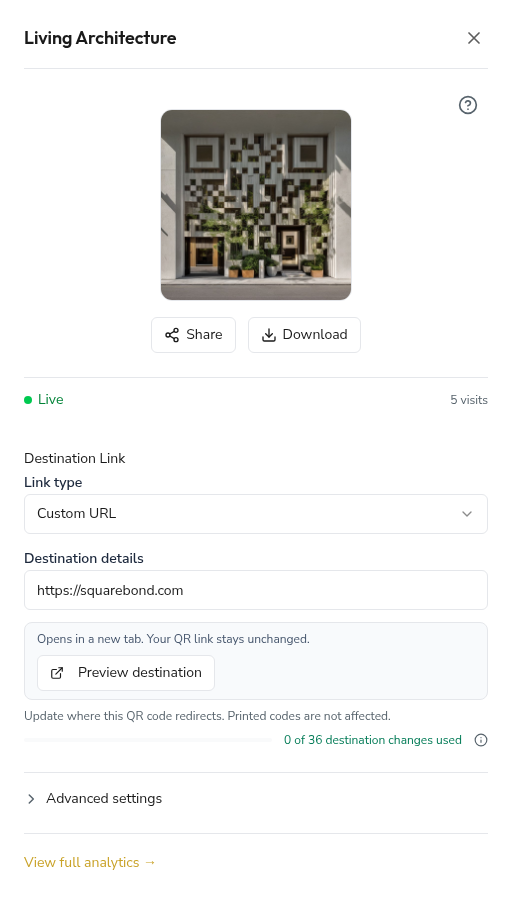
From here you can:
- Change the destination URL. Choose Link type for a custom URL or a social destination, then enter the relevant detail. Social destinations show the final link SquareBond constructs; a custom URL stays exactly as you entered it. Every scan from that moment forward resolves to the new destination; the printed code never changes.
- Preview the destination first. Preview destination opens the constructed link in a new tab, so you can check a listing, social profile, or virtual tour before changing a live redirect. Previewing never changes your QR or uses a destination-change allowance.
- Name the code. Your own name for it — see Naming your codes below.
- Share or download the code (see below).
- Set advanced limits — a scan limit and an active window — under Advanced settings.
Changes are live in seconds. If your QR is on a lawn sign, there's no reprint, no sticker, no republish — just the new destination.
Naming your codes
Out of the box, a code is titled after the artwork it was made from. That works until you own two codes from the same collection — then the Wallet shows you the same heading twice.
Give the code your own name instead. Open a code and use Your name for this code, or click Name this code on any card that doesn't have one yet — that opens the panel with the field ready to type in.
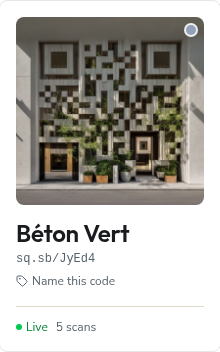
Name it after the thing it is stuck on, not the picture on it: Table 4 — terrasse, Reception desk, Window sticker — Rue Haute. Up to 60 characters.
Where the name appears. Everywhere you see the code and nobody else does — the Wallet grid, the management panel, your dashboard's code table and top-performing code, the analytics page, the list you pick from when changing plan, the filename when you download the artwork, and the answer you get if you ask an AI assistant about your codes.
Where it never appears. The name is for your organisation only. It is not part of the scan experience: a visitor who scans the code never sees it, and the full-screen Present slide keeps the artwork's own title — so you can name a code in your own shorthand and still put it on a screen in front of a room. The one place the name shows inside Present is the caption editor, which offers it as a starting point for a caption; close that panel before you project.
Changing or removing a name. Retype it any time, or use Clear name to drop back to the artwork's title. Naming a code costs nothing and doesn't touch your destination-change allowance.
One name, one owner. The name belongs to you, not to the code. If a code ever leaves your wallet and is later picked up by someone else, they don't inherit your name for it.
Sharing
Two buttons sit beneath the QR preview: Share and Download. Each opens a short menu — hover over it on a computer, or tap it on a phone.
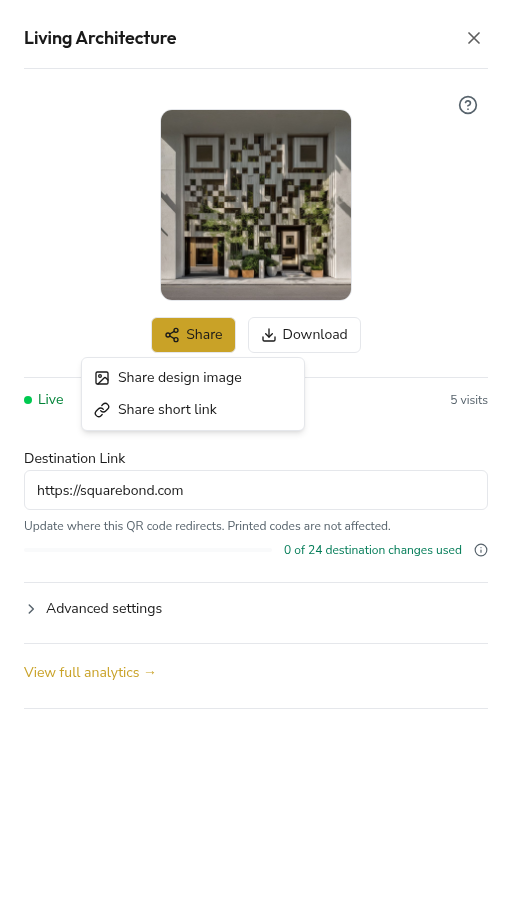
Share offers:
- Share design image — sends the finished, full-colour QR artwork (the one people scan).
- Share short link — sends the code's
sq.sbshort link, so anyone can open the destination without scanning.
On a phone these use your device's native share sheet (Messages, WhatsApp, AirDrop…); on a computer the image downloads and the link copies to your clipboard.
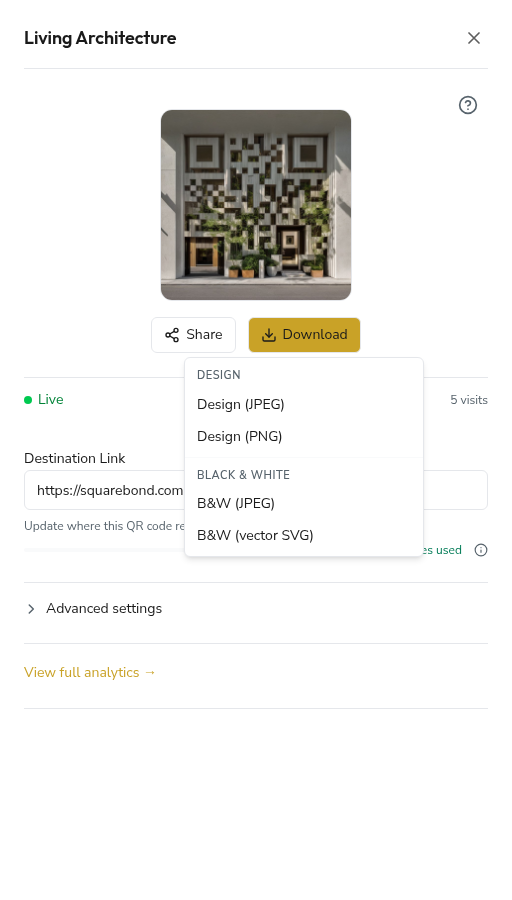
Download offers four files:
- Design (JPEG) — the full-colour artwork, ready to drop into a document or post.
- Design (PNG) — the same artwork as a lossless PNG, with no JPEG compression artefacts.
- B&W (JPEG) — a clean black-and-white version.
- B&W (vector SVG) — the black-and-white code as a scalable vector, ideal for large-format printing and signage.
Items grey out until the underlying file exists — for example, the vector option appears once the B&W asset has been generated.
Scan limit
Inside Advanced settings you can cap how many times a code redirects. Once the total is reached, the redirect switches off until you raise or clear the cap.

The cap counts every redirect, including automated scanners and bots — it mirrors exactly what the redirect engine enforces, so the number you set is the number of redirects that will be served. Use it for time-boxed campaigns or limited offers where you want the link to stop on its own.
Active window
Also under Advanced settings, an active window sets a From and Until date-time. Outside that window the code returns a "not found" page; inside it, the redirect works normally. Leave both blank to keep the redirect always on.
A scan limit and an active window stack: if either condition fails — cap reached or outside the window — redirects pause until the condition clears.
Destination change quota
Every paid plan includes a fixed number of destination changes per QR code, per billing cycle. The small meter beneath the Destination Link shows how many you've used and how many remain.

What counts as a change. A change is recorded only when you save a new URL. Re-saving the same destination, fixing a typo and reverting, opening the panel, or using Preview destination doesn't tick the counter. Renaming a code, editing notes, or changing scan-limit settings also don't count — only the destination URL itself.
What each plan includes, per QR, per billing cycle:
- Starter — 12 changes
- Atelier — 24 changes
- Studio — 36 changes
- Agency — 48 changes
The quota is per individual QR, not pooled across your portfolio. A Studio plan with twenty active codes gets 36 changes on each of them, independently.
When it resets. Your counter resets the moment Stripe successfully bills your subscription — monthly on a monthly plan, annually on an annual plan. The reset is automatic; you don't need to do anything.
Upgrading mid-cycle. Move to a higher tier and the new ceiling applies immediately to every plan-owned QR. Changes you've already used carry over — they're not refunded — but the larger headroom is yours straight away.
When you run out. The Destination Link input locks until your next reset. Your QR keeps redirecting to the last URL you saved, so anything printed in the world continues to scan and resolve as expected. Scans still count toward analytics. Only the ability to change the destination is paused.
Trial codes. The quota meter only appears on plan-owned QRs. Trial codes are unmetered for the duration of the trial.
Bulk select
Tap Select in the top right to enter bulk mode. Checkboxes appear on every card. Pick the codes you want to operate on, then choose Select All or Deselect All from the action bar that appears.
Bulk-action support (bulk rename, bulk destination, bulk export) will expand over time. The selection layer itself is already in place.
Trial expiry banner
If your trial is active, a gold-trimmed banner sits at the top of the Wallet:
Your trial expires on 4 May 2026. Upgrade to a plan to keep your QR codes active.
This is your reminder that when the trial ends, your code's dynamic link resets unless you've started a paid plan. If you're using the trial code on printed materials, upgrade before the date.
Frequently asked questions
Do I need to reprint a QR code to change where it goes?
No. That's the whole point of a dynamic QR. You print the code once, then update the destination from the Wallet as many times as you like. The pattern on the print stays identical — only the landing page changes.
How fast does a destination change take effect?
Within seconds. The next scan will resolve to the new URL.
Can I move a design from one code to another?
No. Each code is paired with one design at activation. If you'd like a different design, add a new code to your plan with that design instead.
What happens to my codes if I cancel my subscription?
They stay active until the end of the current billing period. After that, the dynamic links reset and any printed codes will redirect to squarebond.com instead of your configured destination. See Cancelling a paid plan for the full picture.